Reset your PIN, freeze or unfreeze your credit card and more!

Manage your card with ease on CIMB OCTO App!

Reset your PIN, freeze or unfreeze your credit card and more!

Manage your card with ease on CIMB OCTO App!

Now it's easier than ever to manage your CIMB Debit Mastercard anytime, anywhere. No more waiting on calls or visiting branches - everything you need is just a few taps away for your convenience!
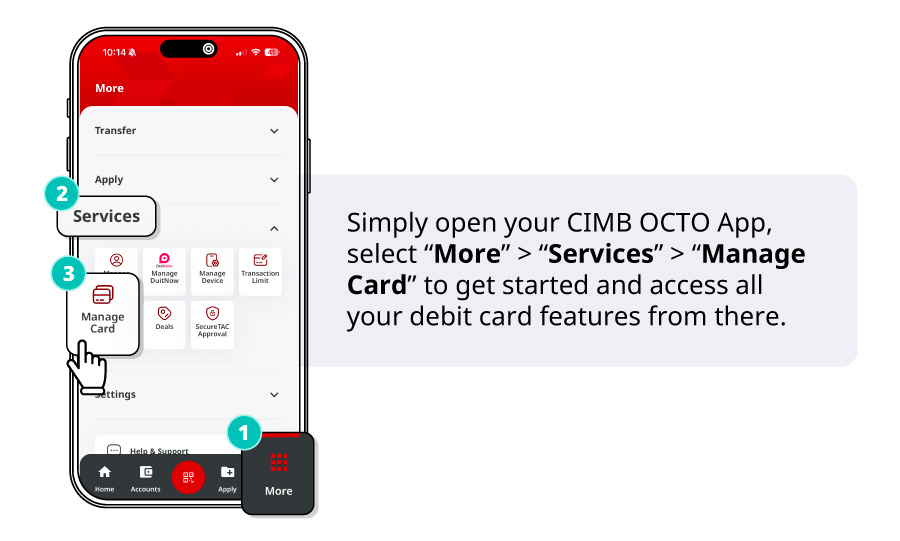
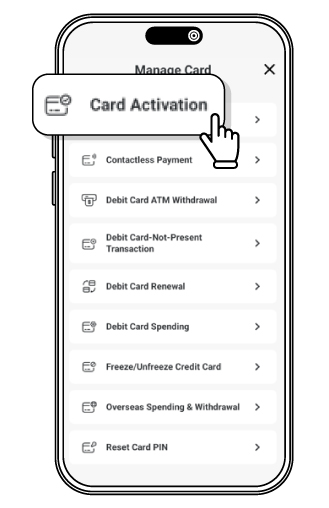
Here's how to activate your CIMB Debit Card


Step 1: Select "Card Activation"

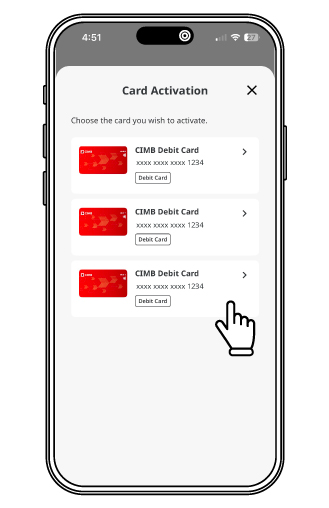
Step 2: Select the card to activate
Note: Only cards that are not yet activated will be displayed for selection.

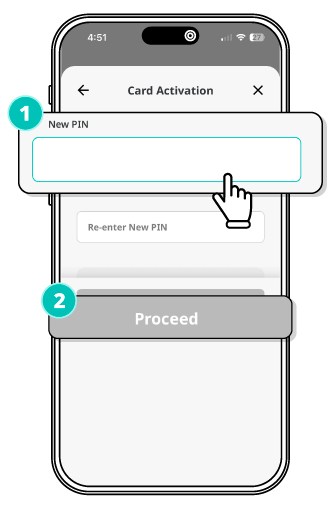
Step 3: Key in a new 6-digit PIN and click "Proceed".

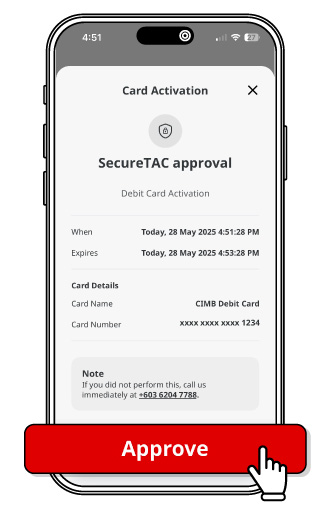
Step 4: Approve with SecureTAC and you're done!

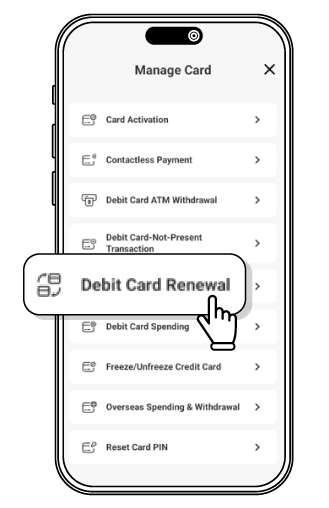
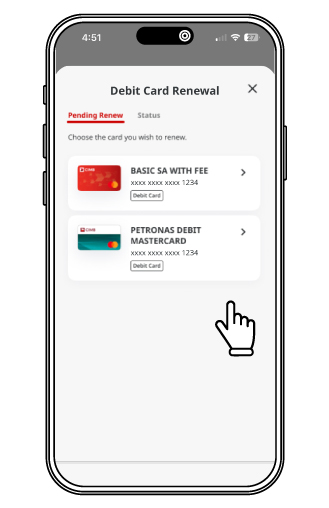
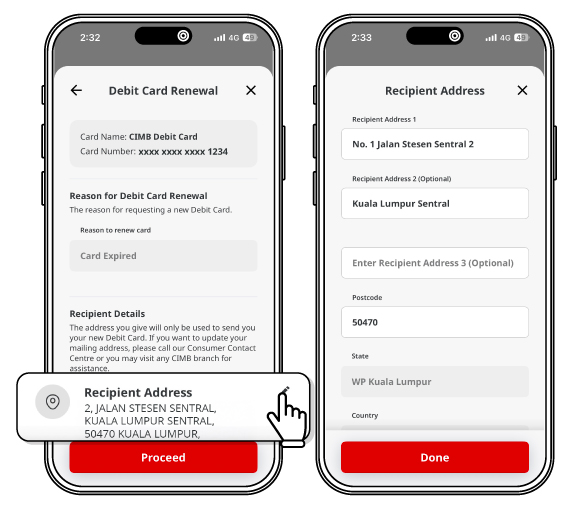
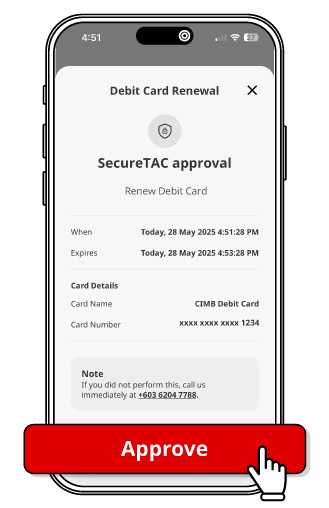
Here's how to renew your expired CIMB Debit Card


Step 1: Select "Debit Card Renewal”

Step 2: Select the card to renew
Note: Only expired debit cards will be displayed for selection.

Step 3: Select or edit the address for new card delivery
Note: This address change is for mailing purposes only and will not update the bank's records.

Step 4: Approve with SecureTAC and you're done!

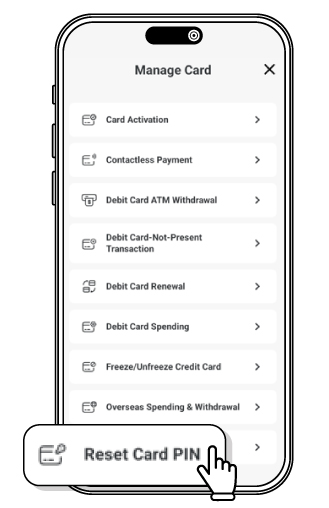
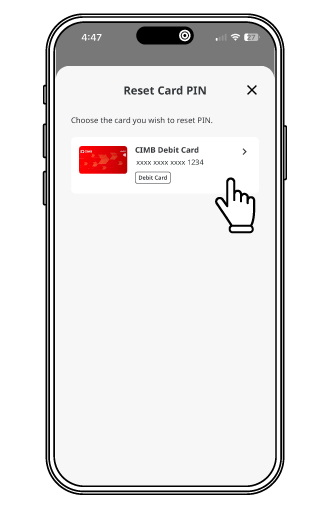
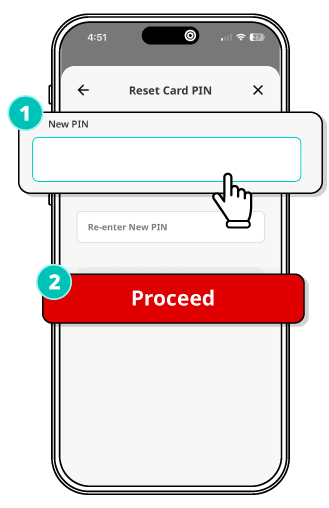
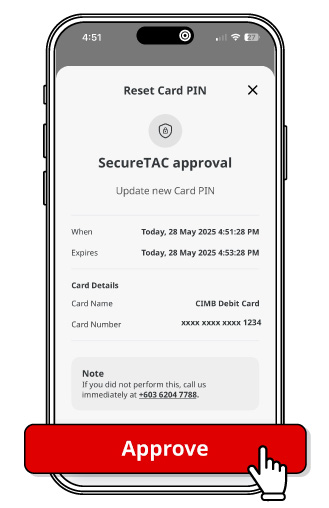
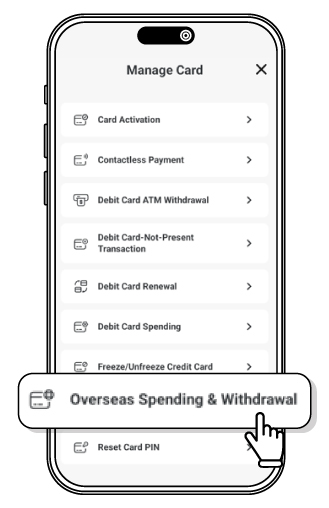
Here's how to reset your CIMB Debit Card's PIN


Step 1: Select “Reset Card PIN”

Step 2: Select the card to reset the PIN
Note: Only activated cards will be displayed for selection.

Step 3: Key in a new 6-digit PIN and click “Proceed”

Step 4: Approve with SecureTAC and you're done!

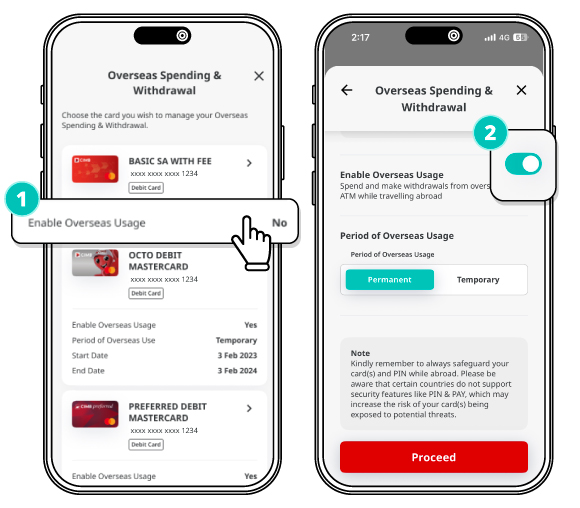
Here's how to enable Overseas Usage feature for your CIMB Debit Card


Step 1: Select "Overseas Spending & Withdrawal"

Step 2: Select the card you would like to enable for Overseas Usage and switch on the toggle.
Note: Only activated cards will be displayed for selection.

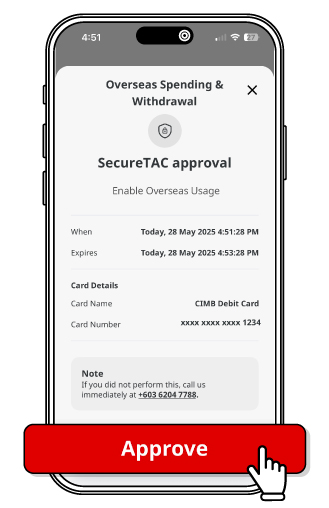
Step 3: Approve with SecureTAC and you're done!

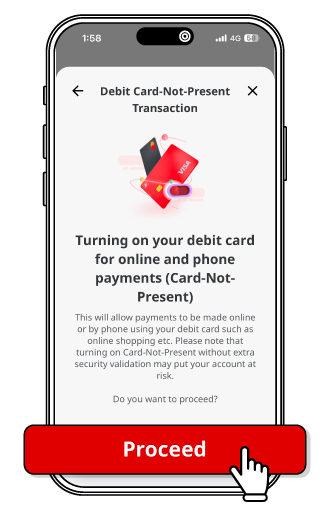
Here's how to enable Card-Not-Present (CNP) feature for your CIMB Debit Card

CNP feature lets you use your debit card for online or phone transactions without needing the physical card.

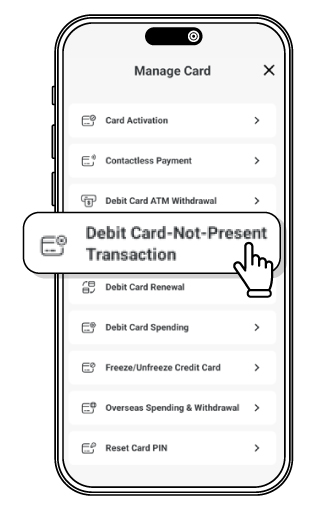
Step 1: Select "Debit Card-Not-Present Transaction"

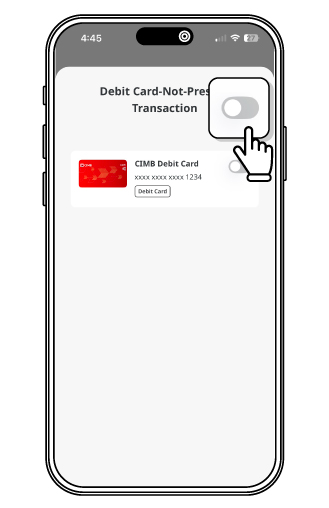
Step 2: Select the card you would like to enable for CNP and switch on the toggle
Note: To disable the feature, switch off the toggle.

Step 3: Clicks "Proceed" to enable the debit card CNP feature

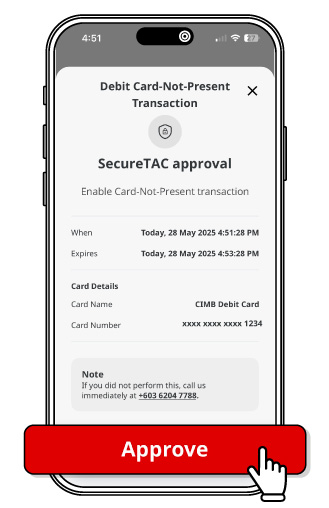
Step 4: Approve with SecureTAC and you're done!

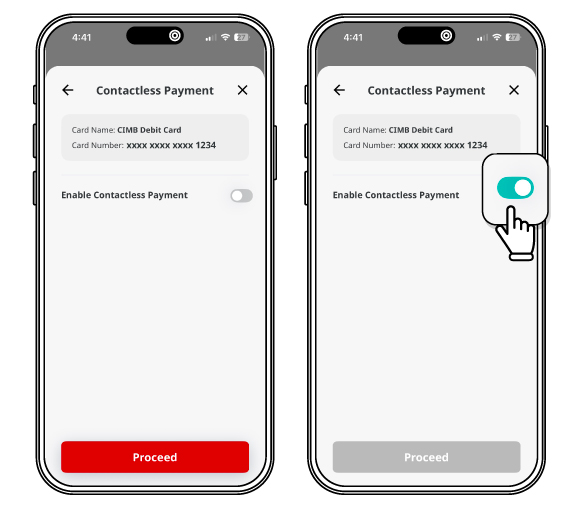
Here's how to enable Contactless feature for your CIMB Debit Card


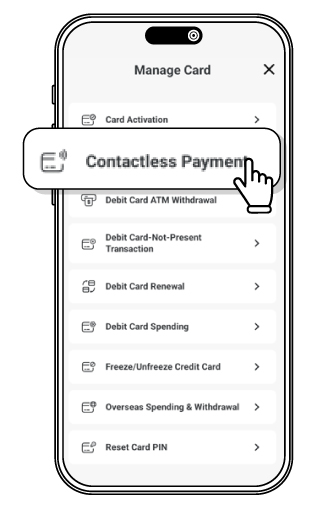
Step 1: Select "Contactless Payment”

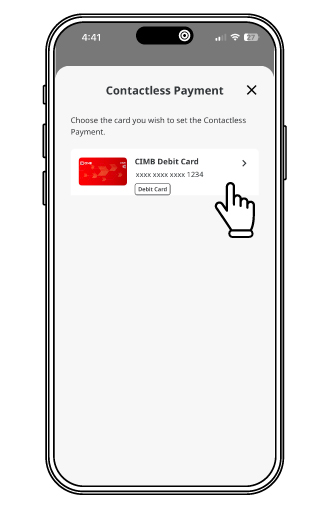
Step 2: Select the card you would like to enable for Contactless feature.
Note: Only activated cards will be displayed for selection.

Step 3: To enable, switch on the toggle if it was previously disabled
Note: By default, the Contactless feature is enabled. To disable it, switch off the toggle.

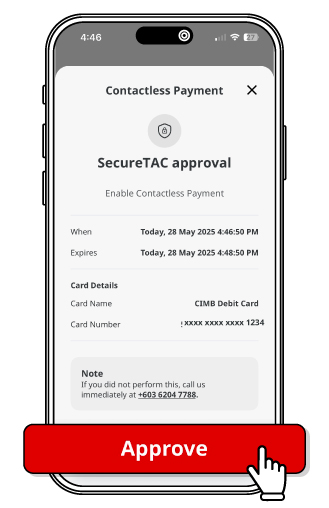
Step 4: Approve with SecureTAC and you're done!

Enjoy everyday banking made easy with CIMB OCTO App!

Scan this QR code to download CIMB OCTO App from respective device app store. Verify the URL before proceeding and do not enter any information on unverified pages.